About
Start with your first song
Piano Dashboard turns your Simply Piano song results into your personal practice history.
-
Finish playing a song in Simply Piano.
Wait for the results screen showing “Song Completed!”, the song title, and your NOTES score—for example, 179/183.
Examples of the results screen to capture
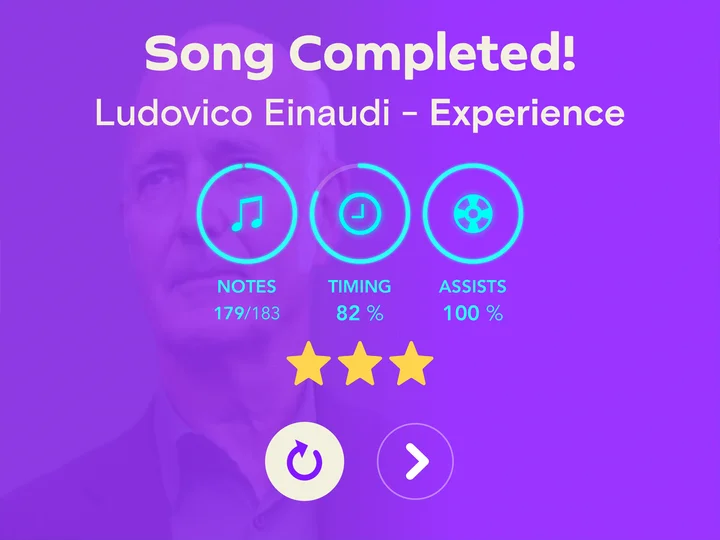
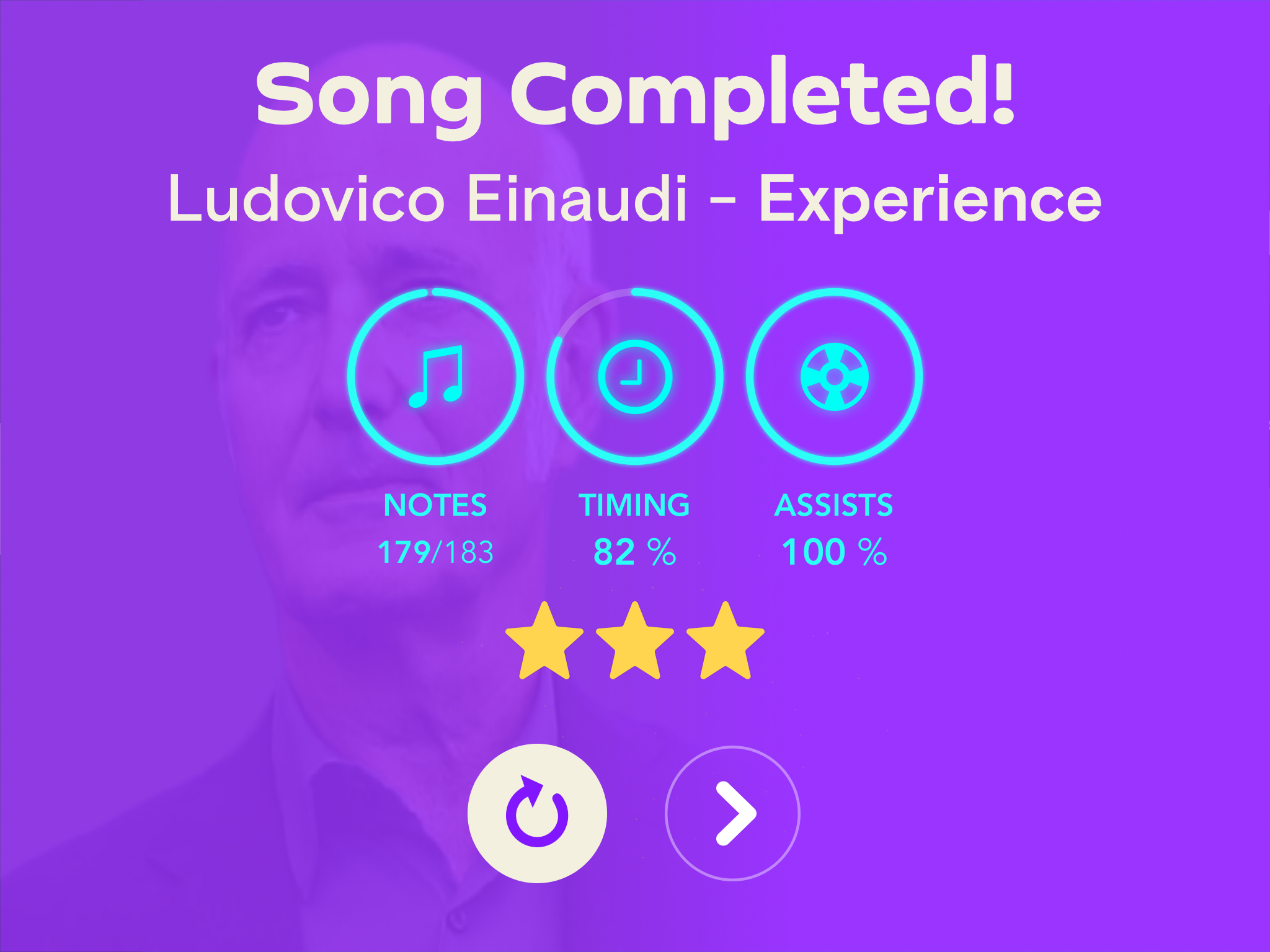
iPad example: notes, timing, and assists. Select the image to enlarge. 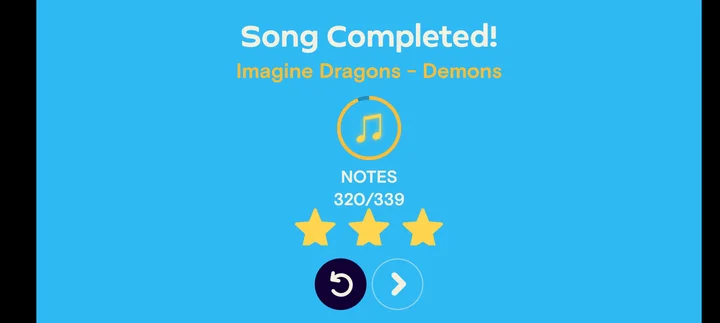
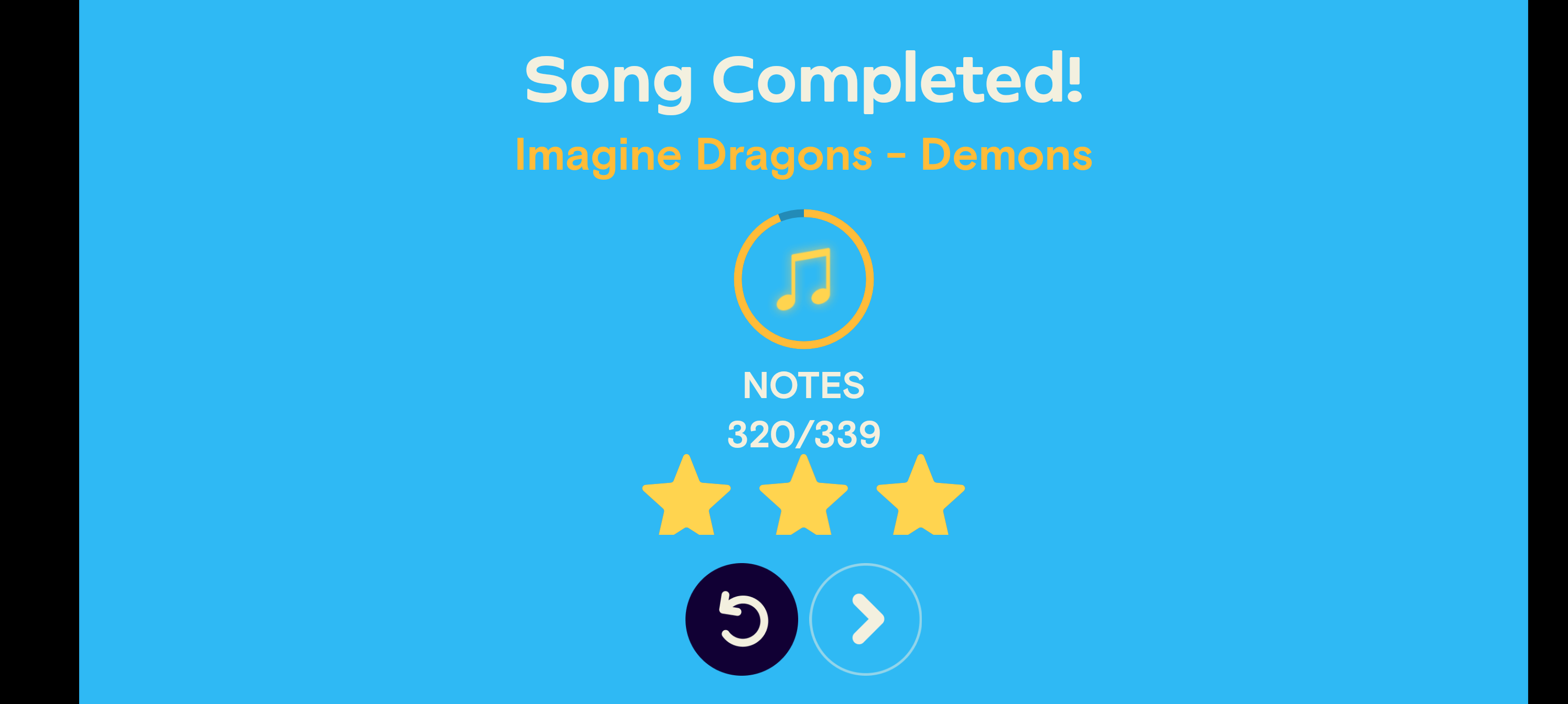
Android example: notes only. Select the image to enlarge. Your screen may look different. Look for “Song Completed!” and your NOTES score. Timing and assists may also appear.
-
Capture that results screen.
Use the screenshot function on the same iPad, phone, or tablet you’re playing on. This saves an image of the screen directly to your photo library, without using a camera.
Upload the original, full-screen screenshot without cropping, resizing, or marking it up.
How do I take a screenshot?
- iPad: press and quickly release the top button and a volume button together. If your iPad has a Home button, use the top button and Home button instead. Apple’s iPad screenshot instructions
- iPhone with Face ID: press and quickly release the side button and volume up button together. For models with a Home button, see Apple’s instructions. Apple’s iPhone screenshot instructions
- Android: on many devices, press the power and volume down buttons together. The method can vary by device. Android screenshot instructions
-
Upload your screenshot here.
Choose the saved screenshot from your photo library, then select Upload. You can upload a single song, or up to 40 songs in one batch.
When processing finishes, your song results will appear in Piano Dashboard.
Your screenshots and practice history are private to your account.
About Piano Dashboard
Piano Dashboard is a personal practice analytics tool.
It helps you track your piano practice progress by turning your own uploaded screenshots into a private dashboard of performance metrics, including notes hit, total notes, timing, assists, stars, song title, artist, level, and play history.
Piano Dashboard is intended to help you answer questions like:
- Which songs am I improving on?
- What have I practiced recently?
- Which songs have my best performances?
- How consistent is my accuracy over time?
- Which levels or songs need more work?
How It Works
You upload screenshots from your own practice activity.
Piano Dashboard processes those screenshots, extracts the relevant performance details, and organizes the results into charts, tables, history pages, and summary views.
Screenshots are private to your account. They are not shared with other users or made public.
After processing, Piano Dashboard discards the original high-resolution screenshot. A small thumbnail or reduced-resolution version may be retained for your own upload history, verification, or troubleshooting.
What Piano Dashboard Does Not Do
Piano Dashboard does not provide music, lyrics, sheet music, audio, arrangements, lessons, or access to any third-party app or service.
Piano Dashboard does not copy or publish third-party song content.
Piano Dashboard does not show your screenshots to other users.
Piano Dashboard does not sell your personal information.
Piano Dashboard does not use your screenshots for public marketing materials.
Independence
Piano Dashboard is an independent tool.
It is not affiliated with, endorsed by, sponsored by, or associated with Simply, JoyTunes, Simply Piano, any music publisher, record label, artist, or rights holder.
References to third-party apps, songs, or artists are used only for identification, compatibility, and organization of your own practice records.
Privacy First
Your practice history belongs to you.
Your dashboard data is available only to you when you are logged in. Uploaded screenshots are handled as private account data. Future features, such as leaderboards or sharing performance data, will be opt-in if added.
Contact
For general questions or support, contact:
admin@pianodashboard.net
For privacy requests, contact:
privacy@pianodashboard.net
For copyright concerns, contact:
copyright@pianodashboard.net
Application Version
- Version
- r589-43b56b0
- Built At
- 2026-11-19T14:05:21Z